
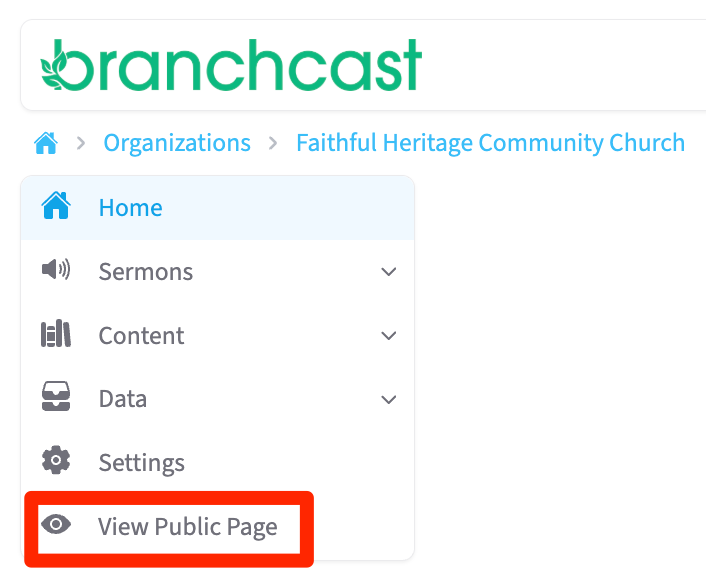
The View Public Page option allows you to see the live, public-facing version of your Branchcast site as visitors and followers will view it. From this page, you can preview your published content, navigation menus, and layout in real time.
Accessing the Public Page
From the left-hand menu, click View Public Page.
You’ll be redirected to the live web version of your Branchcast site.
(screenshot placeholder)
Navigation Menu
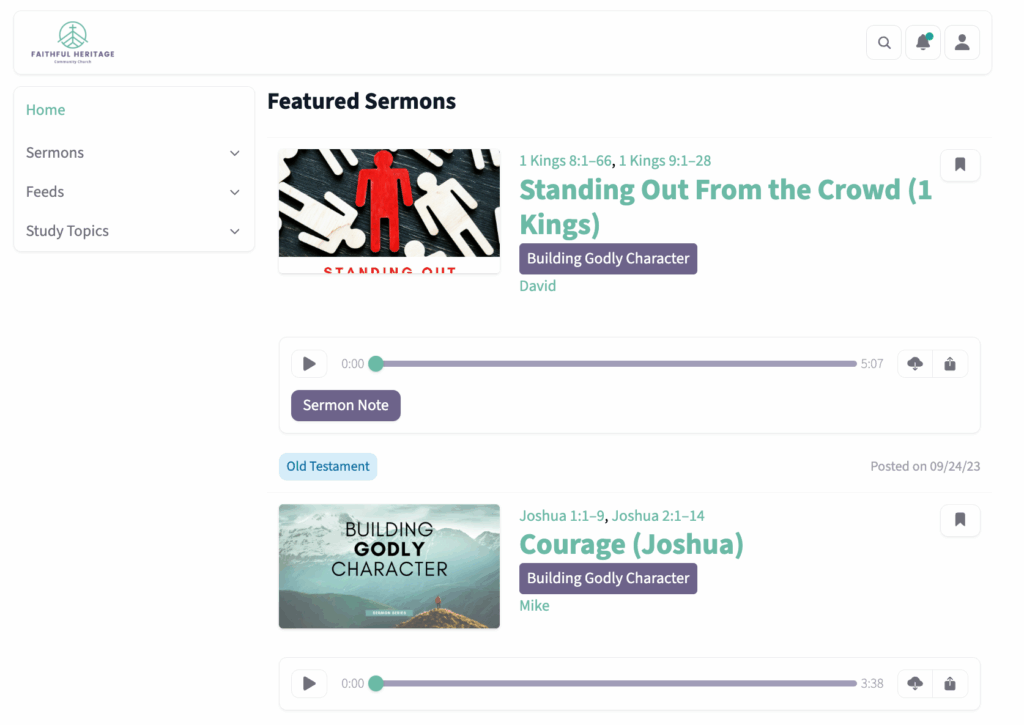
On the left side of the public page, you’ll see the main navigation menu, which includes:
- Home – displays featured and recent content.
- Sermons (dropdown) – includes options for All, Speakers, and Series.
- Feeds (dropdown) – lists each of your individual content feeds.
- Study Topics (dropdown) – lists each of your study topics.
Homepage Layout
The Homepage highlights your featured and most recent content:
- Items marked as Feature on the Homepage will appear at the top.
- Below featured content, Sermons and latest posts display in the order you set for Default Sort on Public Page when creating your content—either Descending or Ascending, sorted by Date, Title, Passage, or Speaker.
Top Right Menu
In the upper right corner of the public page, several quick-access icons are available:
- Search – use the search button to quickly find content by keyword.
- Alerts – click the alert icon to view any notifications.
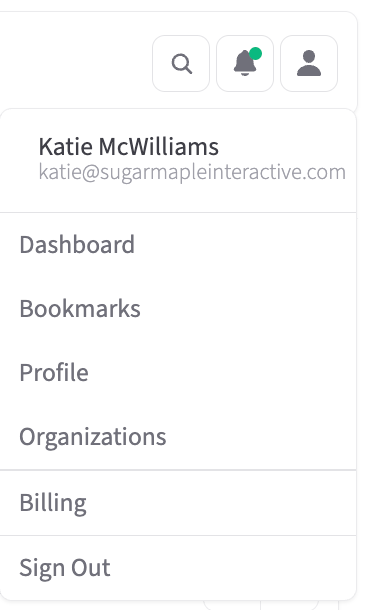
- Profile – opens a menu with the following options:
- Dashboard – access your personal dashboard.
- Bookmarks – view any items you have bookmarked.
- Profile – view and edit your personal profile details.
- Organizations – switch between organizations if you follow more than one.
- Sign Out – log out of your Branchcast account.
Notes
- Only published and publicly visible content appears on the Public Page.
- Updates made in your admin view are reflected here after saving or publishing.
- Use this page to confirm your site’s layout, navigation, and featured content display.