
The Speakers page allows you to view, search, and manage all of your speakers in Branchcast. From here, you can add new speakers, edit existing ones, or delete speakers no longer active in your organization.
Access Speakers
- From the left-side menu, click Sermons > Speakers.
- On the Speakers page, you can:
- View all existing speakers.
- Search for a specific speaker.
- Add a new speaker.
- Edit or delete existing speakers.
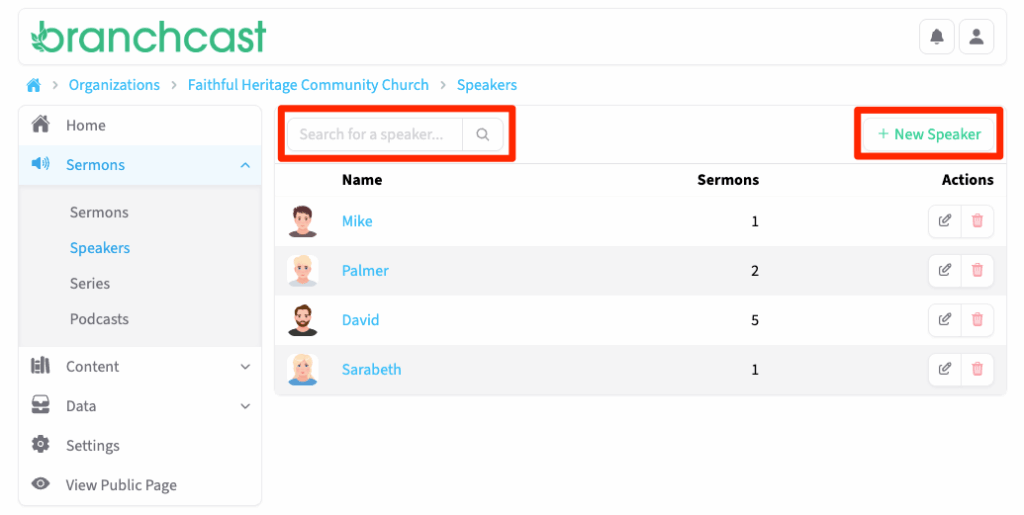
Speaker List Details
Each speaker listed includes:
- Name – The speaker’s full name.
- Sermons – The number of sermons associated with the speaker.
- Actions – Options to Edit or Delete the speaker. You cannot delete a speaker that is attributed to a sermon.

View Sermons by Speaker
- Click on a speaker’s Name to view all sermons by that speaker.
- The list will display each sermon’s Title, Series, Speaker, and Date.
- The Title, Series, and Speaker fields are all clickable and link to their respective pages.
- Use the Actions column to:
- Edit a sermon.
- Get Embed Code for your website.
- Delete a sermon.
- To edit the speaker’s details (such as description or image), click Edit next to the speaker’s name.
- To permanently remove the speaker, click Delete. You cannot delete a speaker that is attributed to a sermon.

Add a New Speaker
- Click + New Speaker.
- Enter the Speaker Name.
- (Optional) Check Featured to display this speaker at the top of your public speaker lists.
- In the Description box, enter details or a short biography of the speaker.
- Click Speaker Image to upload a JPEG or PNG image.
- Click Save when finished.
Tips:
- Use clear, full names for easier searching and consistent tagging across sermons.
- Featured speakers appear first in your public listings and can help highlight key voices from your organization.
- Image files should be JPEG or PNG format.