
The Series page allows you to view, search, and manage all sermon series within Branchcast. From here, you can add new series, edit existing ones, delete series, and view all sermons included in a particular series.
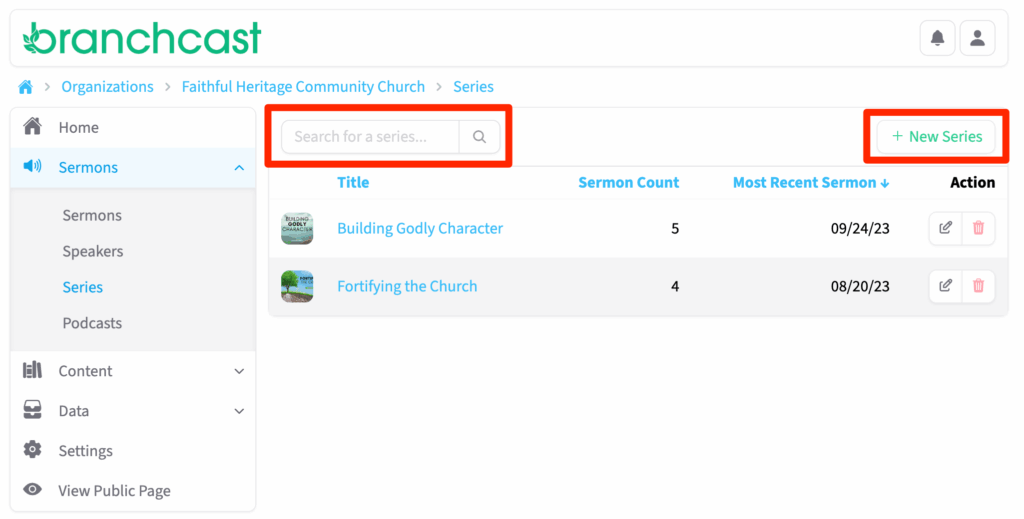
Access Series
- From the left-side menu, click Sermons > Series.
- On the Series page, you can:
- View all existing sermon series.
- Search for a specific series.
- Add a new series.
- Edit or delete existing series.
Series List Details
Each series listed includes:
- Title – The name of the sermon series.
- Sermon Count – The total number of sermons associated with the series.
- Most Recent Sermon – The title or date of the most recently added sermon.
- Actions – Options to Edit, Get Embed Code, or Delete the series.
View Sermons by Series
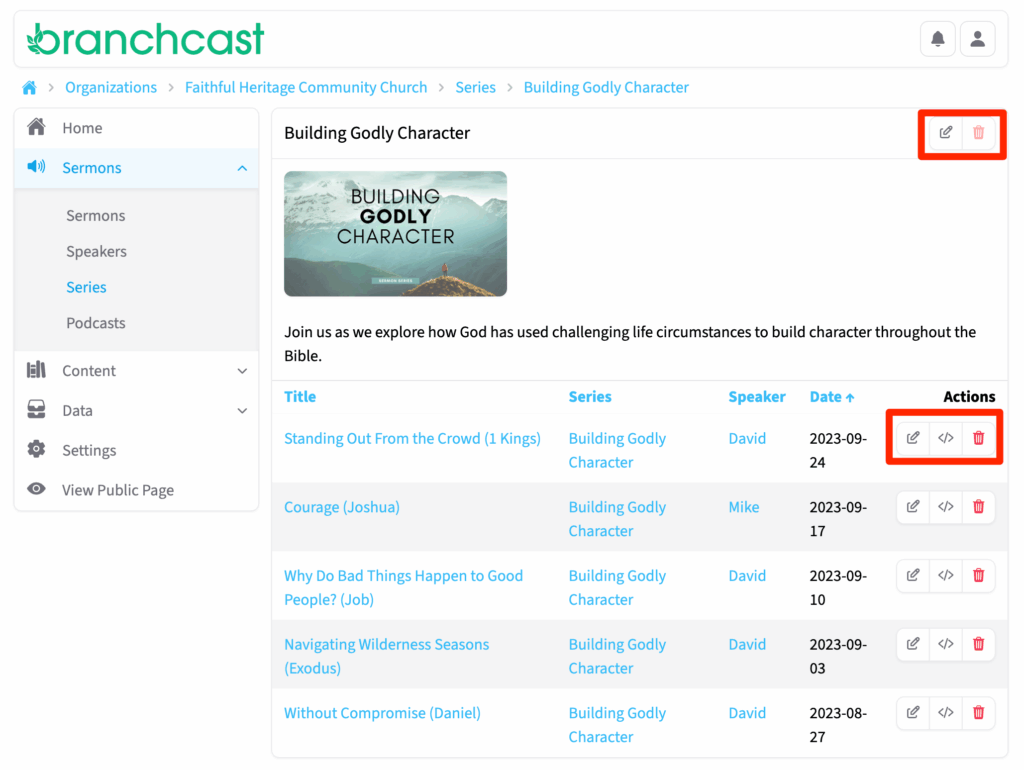
- Click on a series Title to view all sermons within that series.
- The list will display each sermon’s Title, Series, Speaker, and Date.
- Each of these fields is clickable and links to the related record.
- Use the Actions column to:
- Edit a sermon.
- Get Embed Code for your website.
- Delete a sermon.
- To edit the series details (such as its title or description), click Edit next to the series name.
- To remove a series entirely, click Delete.
Add a New Series
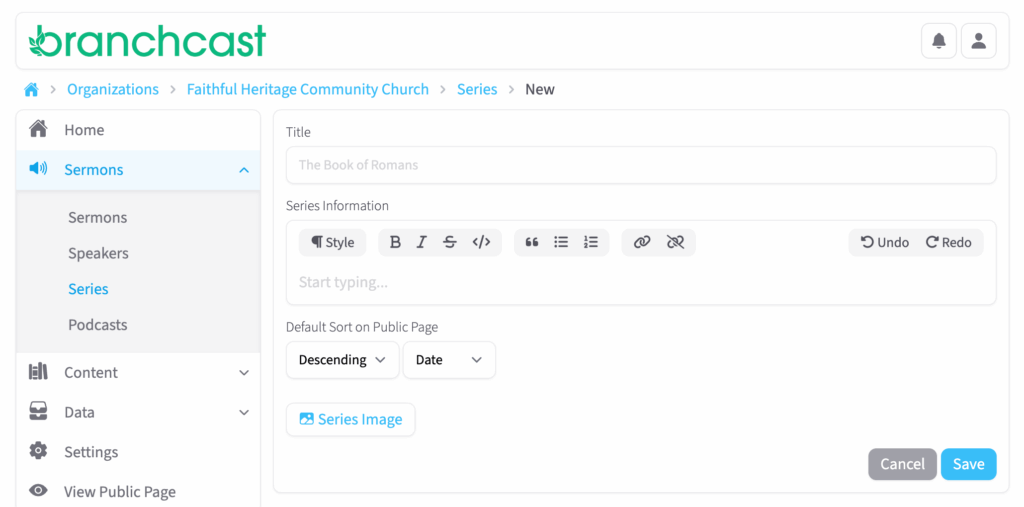
- Click + New Series.
- Enter the Series Title.
- In the Series Information box, enter details or an overview of the series.
- Use the dropbox menus to choose your Default Sort on Public Page (Descending or Ascending by Date, Title, Passage or Speaker).
- Click Series Image to upload a JPEG or PNG image to represent the series.
- Click Save when finished.
Tips
- Organize sermons by theme or time period to make content easier for listeners to browse.
- Consistently name series (e.g., Summer 2025 Series – Faith in Action) for easy sorting.
- Images can be JPEG or PNG; there is no size restriction.