
The Exports page allows you to download data from Branchcast in bulk. From here, you can generate new exports, view existing export activity, and download completed files.
Export files are removed after 7 days.
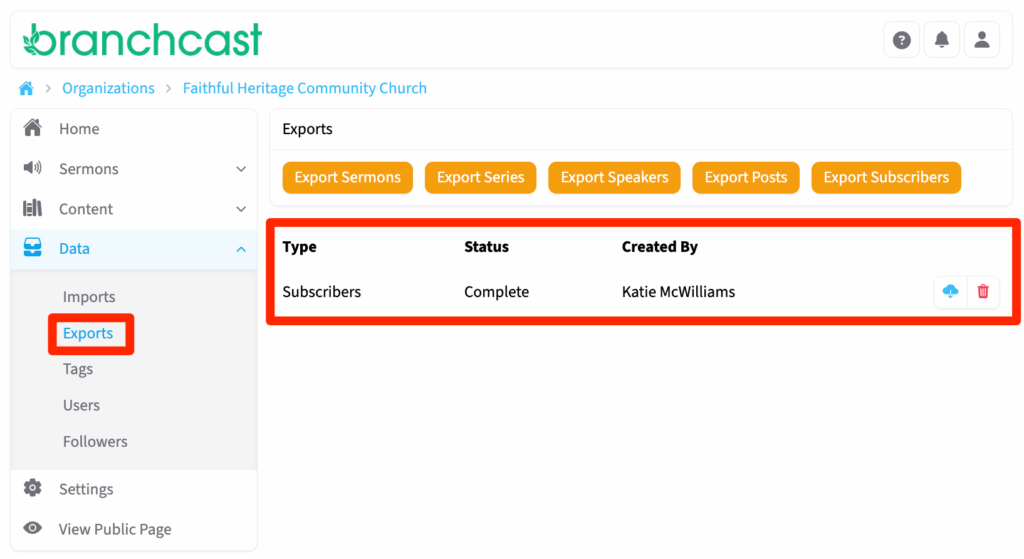
Access Exports
- From the left-side menu, click Data > Exports.
- On the Exports page, you can:
- View available export options.
- Generate a new export.
- Download or delete existing exports.

Available Exports
The following export options are available:
- Export Sermons
- Export Series
- Export Speakers
- Export Posts
- Export Subscribers
Click the button for the data type you wish to export.
Export List Details
Once an export is initiated, it will appear in the export list showing:
- Type – The type of export (e.g., Sermons, Series, Speakers, Posts, or Subscribers).
- Status – The current state of the export (Processing or Complete).
- Created By – The user who generated the export.
- Actions – Options to Download or Delete the export record.
Export Delivery
Once your export is complete, a download link will be emailed to the user who initiated the export. You can also download the file directly from the Exports page once its status is marked as Complete.