
The Users section in Branchcast allows you to manage account access by adding or removing Admins and managing Bans. From here, you can invite new users to join your Branchcast account, update user information, or restrict access to specific email addresses.
Accessing Users
To manage users, go to Data > Users in the main menu.
From this page, you can view and manage two lists:
- Admins – individuals who have administrative access to your Branchcast account.
- Bans – a list of email addresses that are restricted from accessing your account.
Add a New Admin
To add a new admin:
- In the New Admin… field, type the user’s email address.
- Click Add.
- The user will receive an email invitation to join your account.
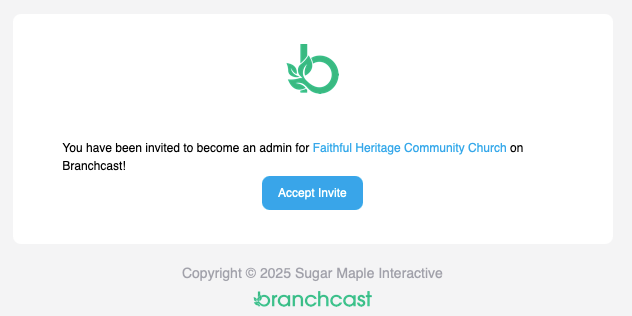
The email includes an Accept Invite button that takes them to the Branchcast website, where they can Confirm or Decline the invitation.
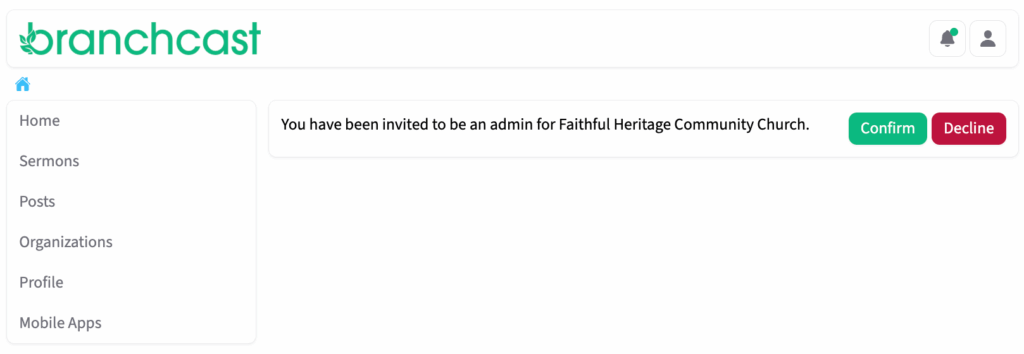
If they confirm, their accepted roles will display within their account.
Once accepted, click the Admin link to open the admin page. The user’s name will now appear without the “invited” label.

Users can view their assigned roles and click Leave Role at any time if they no longer wish to participate.
Edit Your Profile
After accepting the invitation, users can update their personal details:
- Click the Profile icon in the top-right corner.
- From the Profile page, users can:
- Add or update their profile image
- Edit their First Name, Last Name, and Email
- Add a Phone Number
- Click Update to save changes.
Manage Bans
To prevent someone from accessing your Branchcast account:
- Type their email address in the New Ban… field.
- Click Add to apply the ban.
All banned email addresses will appear in the Bans list. To remove a ban, click Delete next to the email address.

Notes
- Invitations must be accepted before users gain admin access.
- You can remove admin access by deleting a user from the Admin list.
- Removing a ban immediately restores access for that email address.