
Manage your organization’s key settings, including organization information, communication preferences, appearance and account status. Properly configuring these settings ensures your account reflects your organization accurately and that you can engage followers effectively.
Access Account Settings
- Log in to Branchcast as a user: https://app.branchcast.com/users/sign_in
- In the left-side menu, click Organizations.
- Under Managed Organizations, select the organization you want to edit.
Alternatively, you can click your profile in the top-right corner and select Organizations from the dropdown menu.

Now, select Settings from the dropdown menu.
Go through each tab and fill in the requested information while adjusting your settings and preferences.
Information Tab
Update your organization’s core details:
- Organization Name – The name displayed publicly in your portal and app.
- Information – A short paragraph describing your organization.
- Address – Your organization’s mailing address.
Tip: Keep your description clear and concise to help followers understand your mission.

Communication Tab
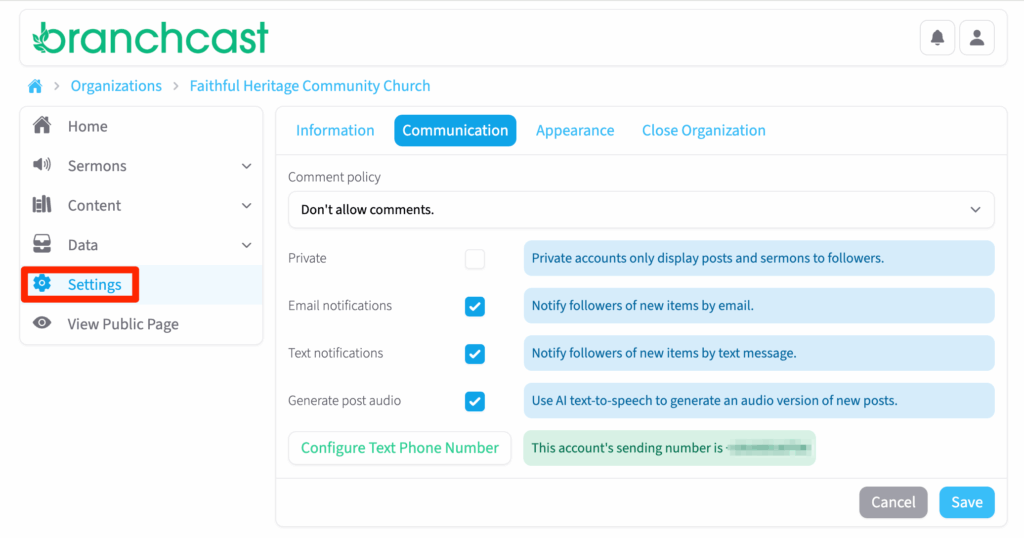
Configure how your organization interacts with followers and receives notifications:
- Comment Policy – Set the rules for comments on sermons and posts.
- Private Account – Restrict access so only followers can view your content.
- Email Notifications – Receive updates via email.
- Text Notifications – Receive updates via SMS.
- Generate Post Audio – Automatically create audio versions of posts using AI Text-to-Speech.
- Configure Text Phone Number – Enter or click to update the phone number used for SMS notifications.
Tips: Enabling private mode and notifications together ensures your content reaches only intended followers.
Appearance Tab
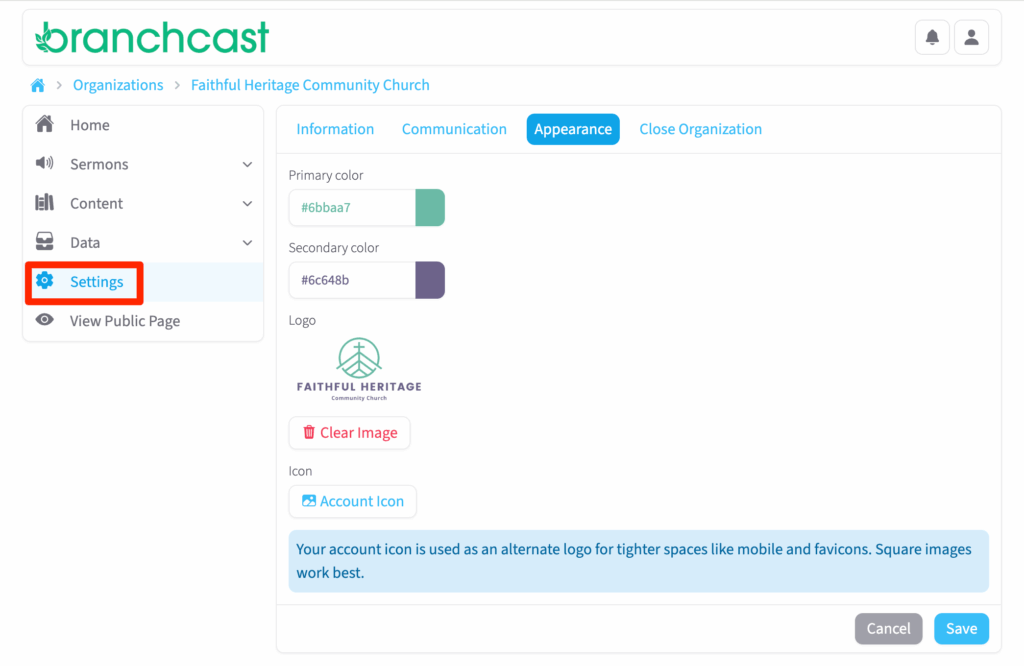
Customize your organization’s branding:
- Primary Color – The main color used in your portal and app.
- Secondary Color – Accent color to complement the primary color.
- Logo – Upload your organization’s logo for display in your portal and app.
- Icon – Upload a small icon for app and portal use. Square images work best.
Tip: Match your logo and colors to your organization’s official branding for a cohesive look.
Close Organization
- Click Close Organization to permanently close your Branchcast account.
- Confirm your choice in the pop-up window.
Note: Closing will remove all data, including sermons, posts, and followers. If you need this data, make sure that you export your data before closing. Closing your account is permanent and cannot be undone.
Tips
- Keep your “About Us” description concise and engaging.
- Double-check logos and colors for proper visibility in the portal and app.
- Only close your account if you are certain you no longer want to use Branchcast.